
Add the linux OCZ Firmware update ISO (based on pmagic) to your USB drive.Unsupported embed
If you have purchased an OCZ SSD drive and want to update the firmware, you can do it by booting the linux update ISO from a USB drive. You will need to do this if the OCZ drive is your primary boot drive – e.g. if you have the OCZ SSD fitted in your notebook. Booting from USB also allows you to set your BIOS to AHCI mode – update the firmware (which works best in AHCI mode) – and then set ithe BIOS back as it was before (if required).
If the SSD is not the primary drive but you have Windows Intel RST 10 (Rapid Storage Technology version 10) SATA drivers you may have problems with the Windows updater unless you boot to the linux update utility.
Here are the issues/rules if you try to use the Windows Firmware Updater Tool under Windows:
a. BIOS SATA mode should be AHCI or it may not be updated/detected
b. The OCZ SSD drive must be a non-system disk or ‘spare’ for the Tool box to work.
c. Run with Administrator elevated command.
d. Does NOT work with Intel RST 10 series drivers installed.
e. Does not work with Windows XP.
To get around these Windows issues, you can boot from the linux ISO to run the update.
Here is how to add the linux parted magic firmware update ISO file to your multiboot (multipass) USB drive and then boot from it…
If you don’t have a bootable USB drive already, simply install and run RMPrepUSB and select WinPE, FAT32 and Boot as HDD and click Prepare Drive – then click on the Install grub4dos button and follow the prompts.
1. Download the latest ISO file from here. Read the posts there for more details and important information about the utility.
2. Copy the iso file to the /_iso/linux folder on your USB drive.
3. Add the 7 lines of text (note: one of the lines below may be wrapped round – use cut and paste) for the new menu entry below to your grub4dos menu.lst file on the root of your USB drive (or create a new file using Notepad). Change the iso filename if yours is a later version.
iftitle [if exist /_iso/linux/ocz_fwupd_2.68.12.iso] run /_iso/linux/ocz_fwupd_2.68.12.iso
find –set-root /_iso/linux/ocz_fwupd_2.68.12.iso
map /_iso/linux/ocz_fwupd_2.68.12.iso (hd32) || map –mem /_iso/linux/ocz_fwupd_2.68.12.iso (hd32)
map –hook
root (hd32)
kernel /pmagic/bzImage iso_filename=/_iso/linux/ocz_fwupd_2.68.12.iso edd=off load_ramdisk=1 prompt_ramdisk=0 rw nomodeset nosshd nobluetooth nosmart numlock=on loglevel=9 max_loop=256 vmalloc=256MiB blacklist=nouveau
initrd /pmagic/initramfs
iftitle [if exist /_iso/linux/ocz_tools_316.iso] run /_iso/linux/ocz_tools_316.iso
find –set-root /_iso/linux/ocz_tools_316.iso
map /_iso/linux/ocz_tools_316.iso (hd32) || map –mem /_iso/linux/ocz_tools_316.iso (hd32)
map –hook
root (hd32)
kernel /boot/vmlinuz iso_filename=/_iso/linux/ocz_tools_316.iso edd=off load_ramdisk=1 prompt_ramdisk=0 rw nomodeset nosshd nobluetooth nosmart numlock=on loglevel=9 max_loop=256 vmalloc=256MiB blacklist=nouveau
initrd /boot/tinycore.gz
#Extract the contents of ocz-tools-3.20.4.iso to a USB flash drive (iso file not needed on disk)
iftitle [if exist /boot/core.gz] OCZ Firmware Update v3.20.4
kernel /boot/vmlinuz quiet waitusb=10 blacklist=r8169
initrd /boot/core.gz
4. Now go boot it (set the BIOS to AHCI HDD mode before you boot from the USB device)!
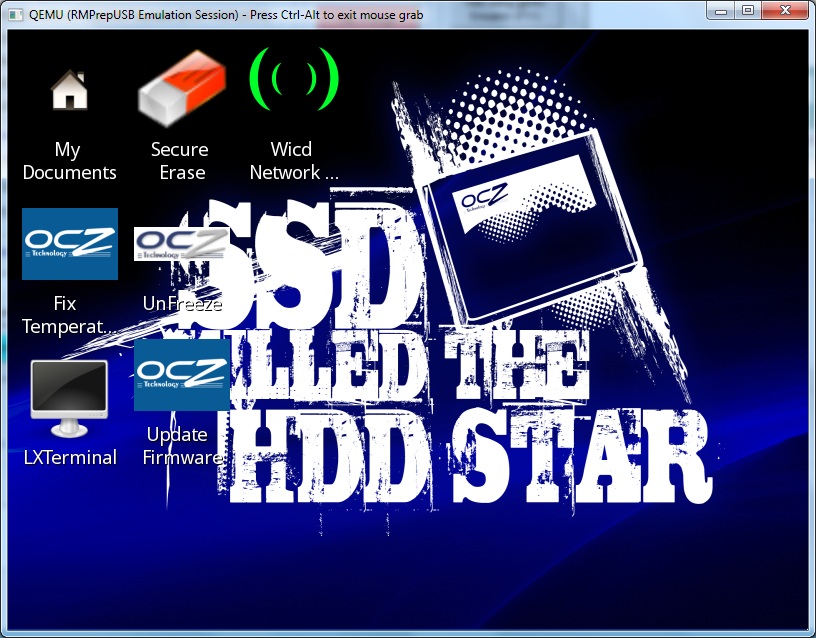
Note: To update the firmware, a network/internet connection is required. If necessary, set up the wireless connection first using the Wicd Network icon.
